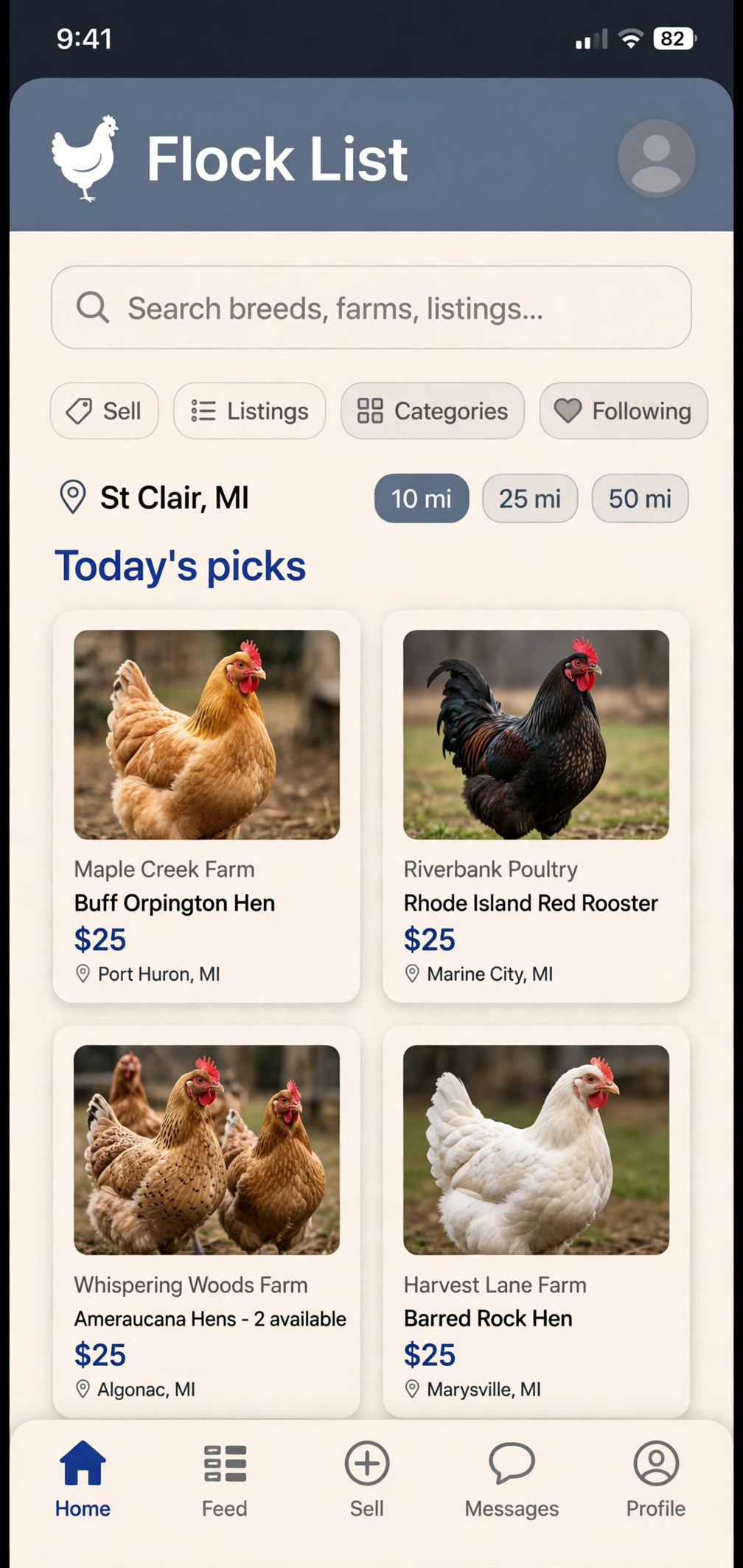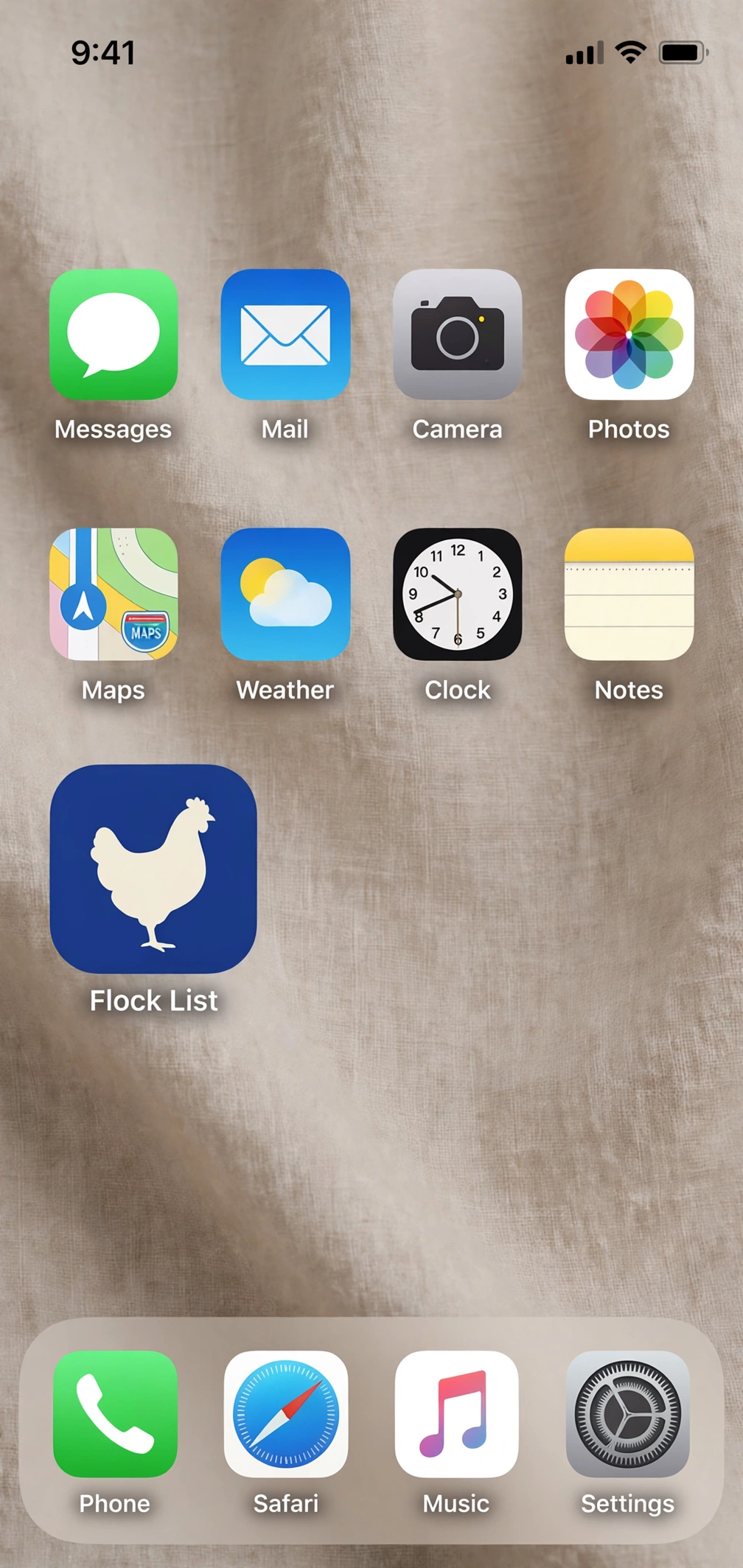
Flock List is free to use as an app on your phone — no App Store or Google Play download needed.
It’s a web app (also called a progressive web app, or PWA): you add it to your phone’s home screen straight from your browser, and it opens from its own icon, just like any other app. You always get the latest version automatically, because it is the same Flock List website.
It costs nothing, and it works the same way as the website: browse listings, search by breed, city, and state, and post a listing from your free account.
Pick your phone below and follow the steps. It takes about a minute.
For iPhone (iOS) — in Safari
This only works in Safari on iPhone or iPad. Chrome and other browsers on iPhone do not show the same ‘Add to Home Screen’ option, so open flocklist.net in Safari first.
- Open Safari and go to flocklist.net. Wait for the page to finish loading.
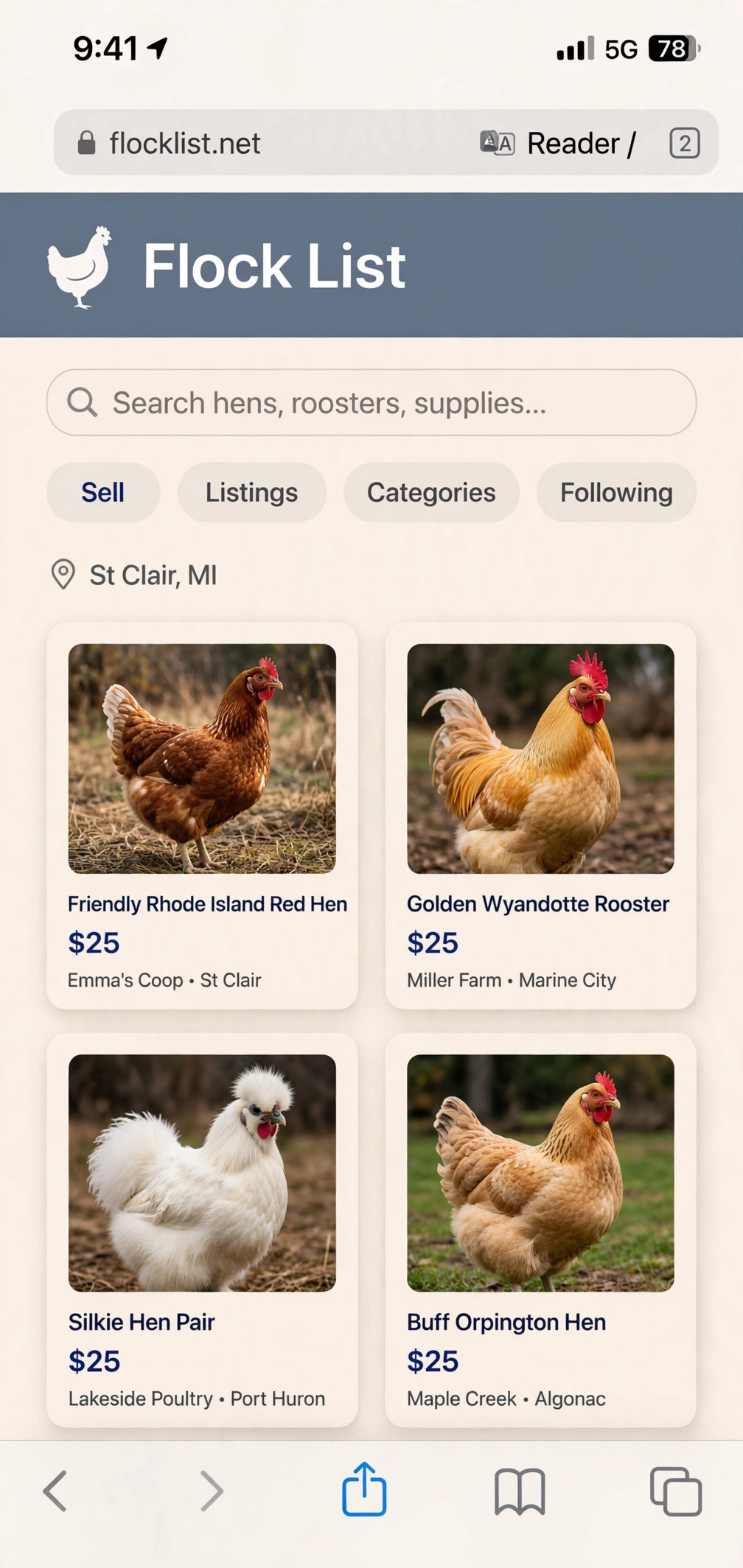
- Tap the Share button — the square with an arrow pointing up. On iPhone it is at the bottom of the screen; on iPad it is in the top bar.
- Scroll down the Share sheet until you see Add to Home Screen, then tap it.

- Check the name. It should read Flock List — you can shorten or change it if you like.
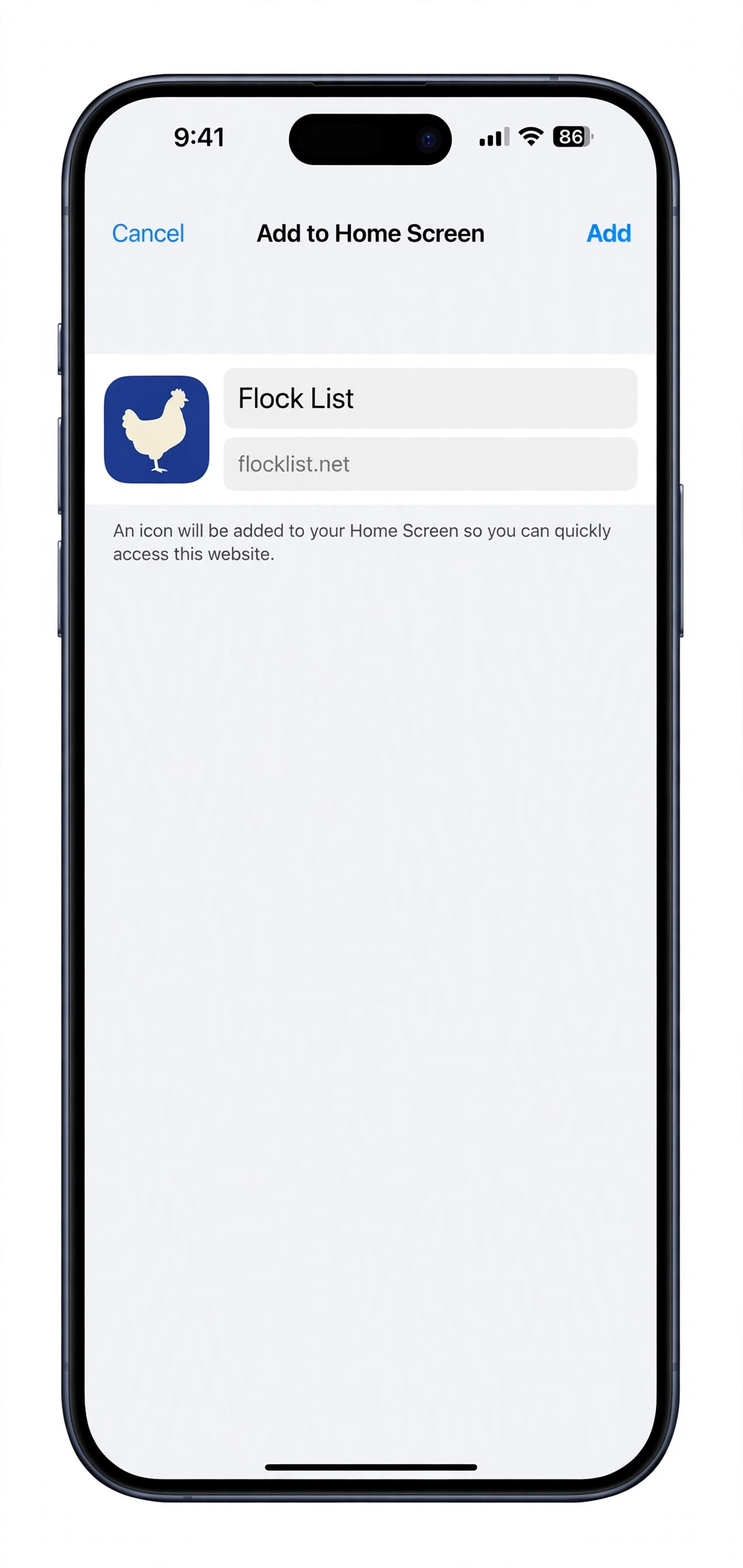
- Tap Add in the top-right corner.
- Go to your home screen. You will see the Flock List icon there. Tap it to open Flock List like an app.

That’s it. You can move the icon, put it in a folder, or delete it later, just like any other app icon.
iPhone troubleshooting
- Can’t see ‘Add to Home Screen’? Scroll further down the Share sheet — it sits below the first row of options. Also check you are in Safari, not Chrome.
- On a newer iPhone, you may see an ‘Open as Web App’ switch when you add it. Leave it switched on if you want it to open as its own app rather than as a Safari bookmark.
- Still not there? Make sure Safari has fully loaded flocklist.net, then try the Share button again.
For Android — in Chrome
Use Google Chrome on Android. The exact wording varies a little by phone and Chrome version — you may see ‘Install app’ or ‘Add to Home screen.’ Both do the same job here.
- Open Chrome and go to flocklist.net. Wait for the page to finish loading. If Chrome shows an Install banner or prompt at the bottom of the screen, you can tap Install there instead and skip to step 4.
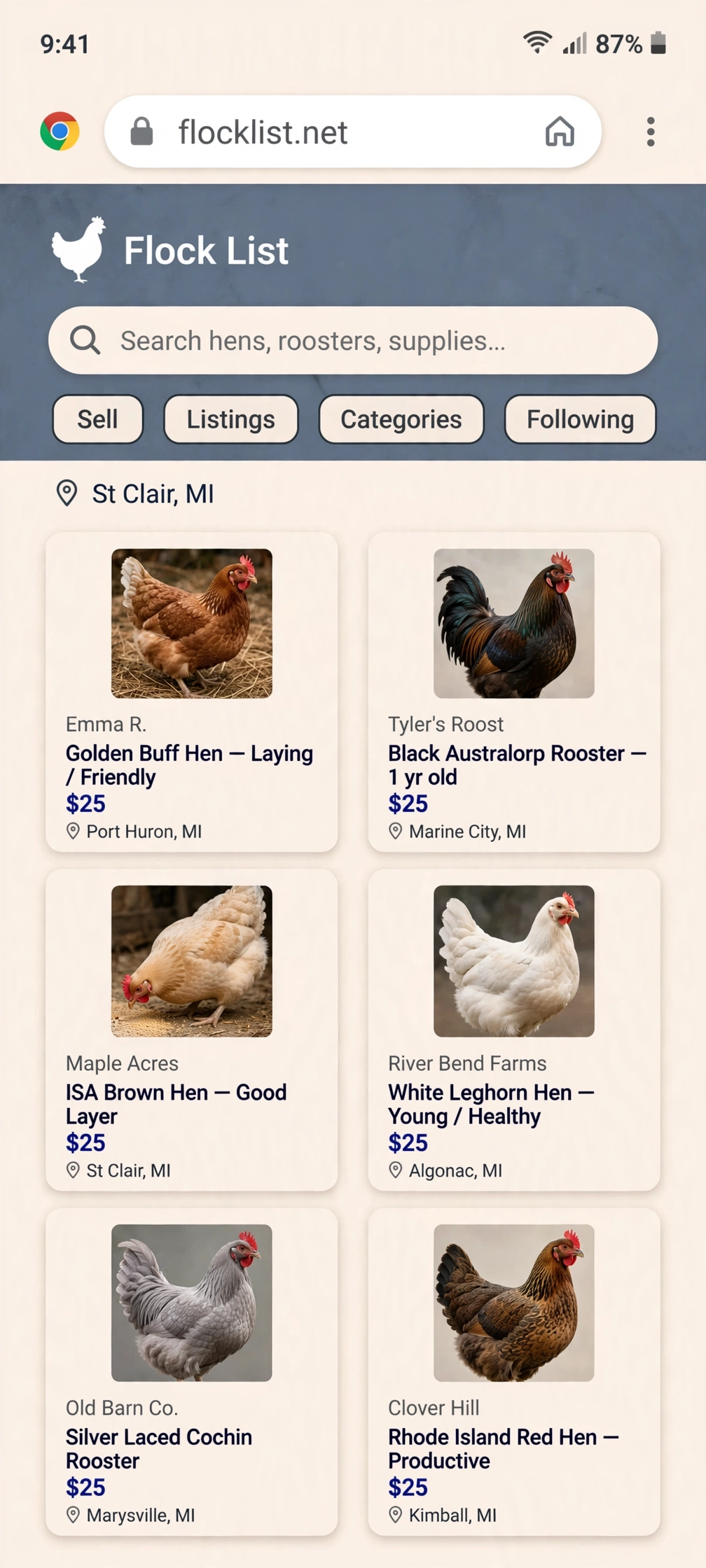
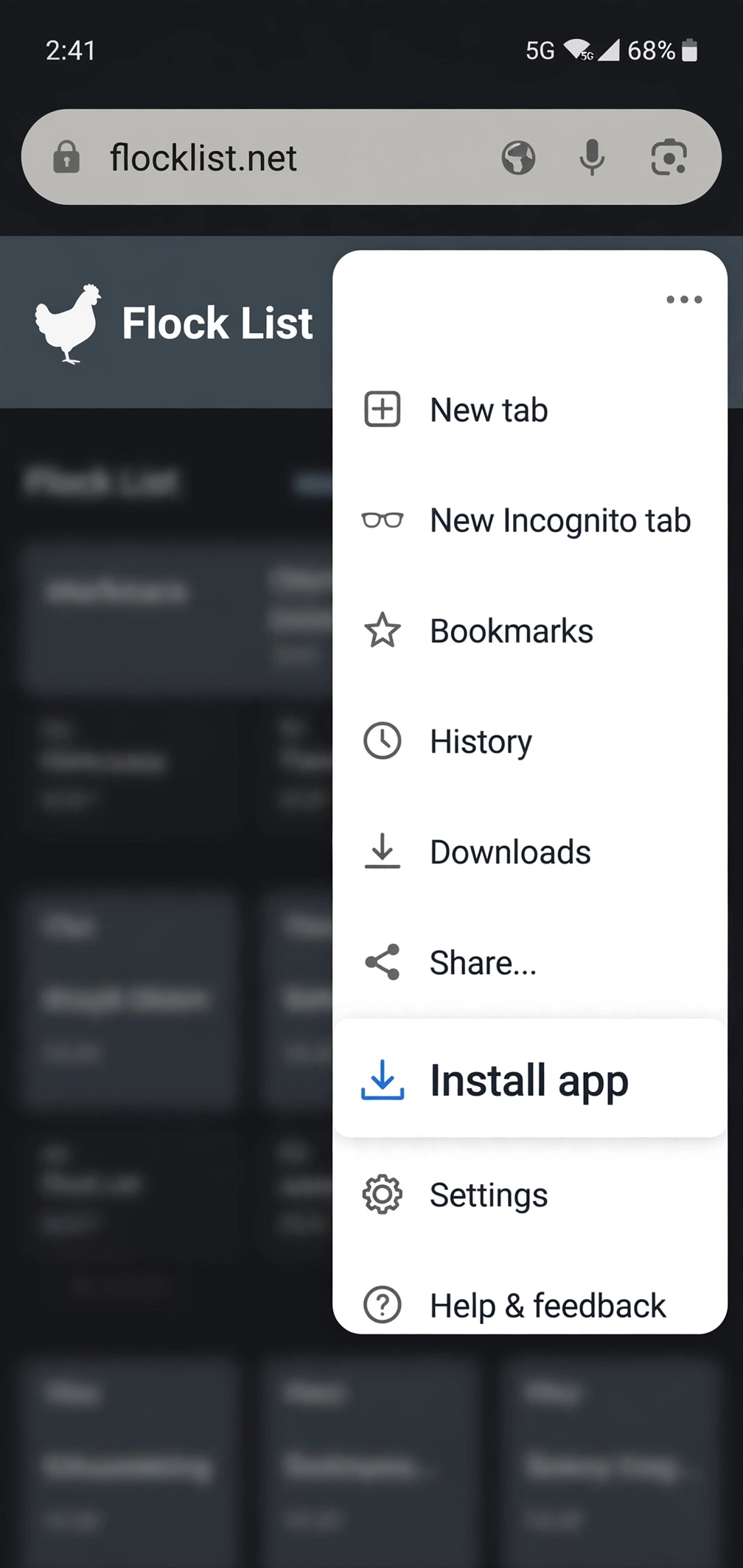
- Tap the three-dot menu (⋮) in the top-right corner of Chrome.
- Tap Install app — or, if you see it instead, Add to Home screen.
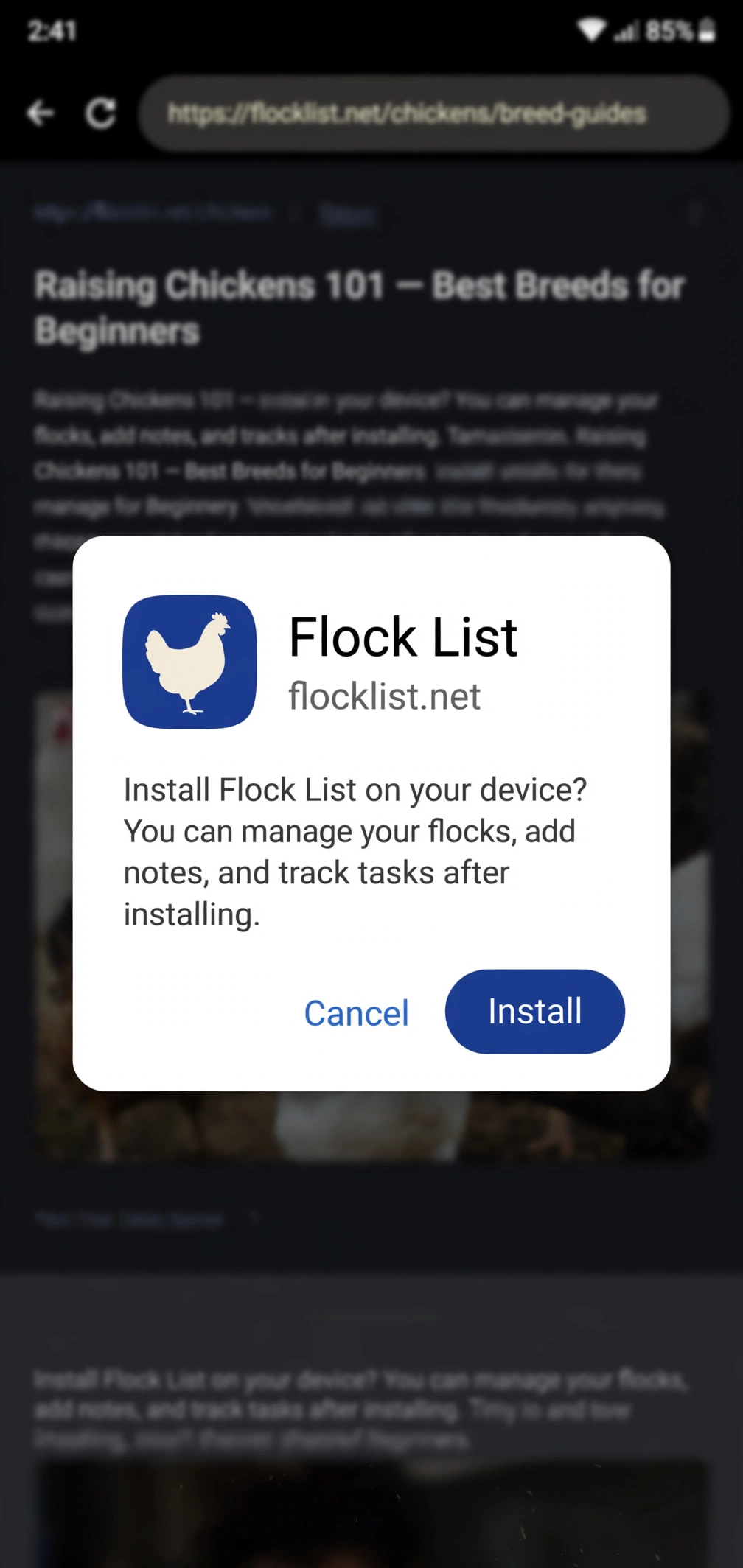
- Confirm when asked: If you tapped “Install app,” tap Install on the confirmation. If you tapped “Add to Home screen,” check the name (Flock List), then tap Add.
- If Chrome asks where to put it, tap Add automatically to place it on your home screen right away, or touch and hold the icon preview to drag it where you want it.
- Go to your home screen. You will see the Flock List icon there. Tap it to open Flock List like an app.
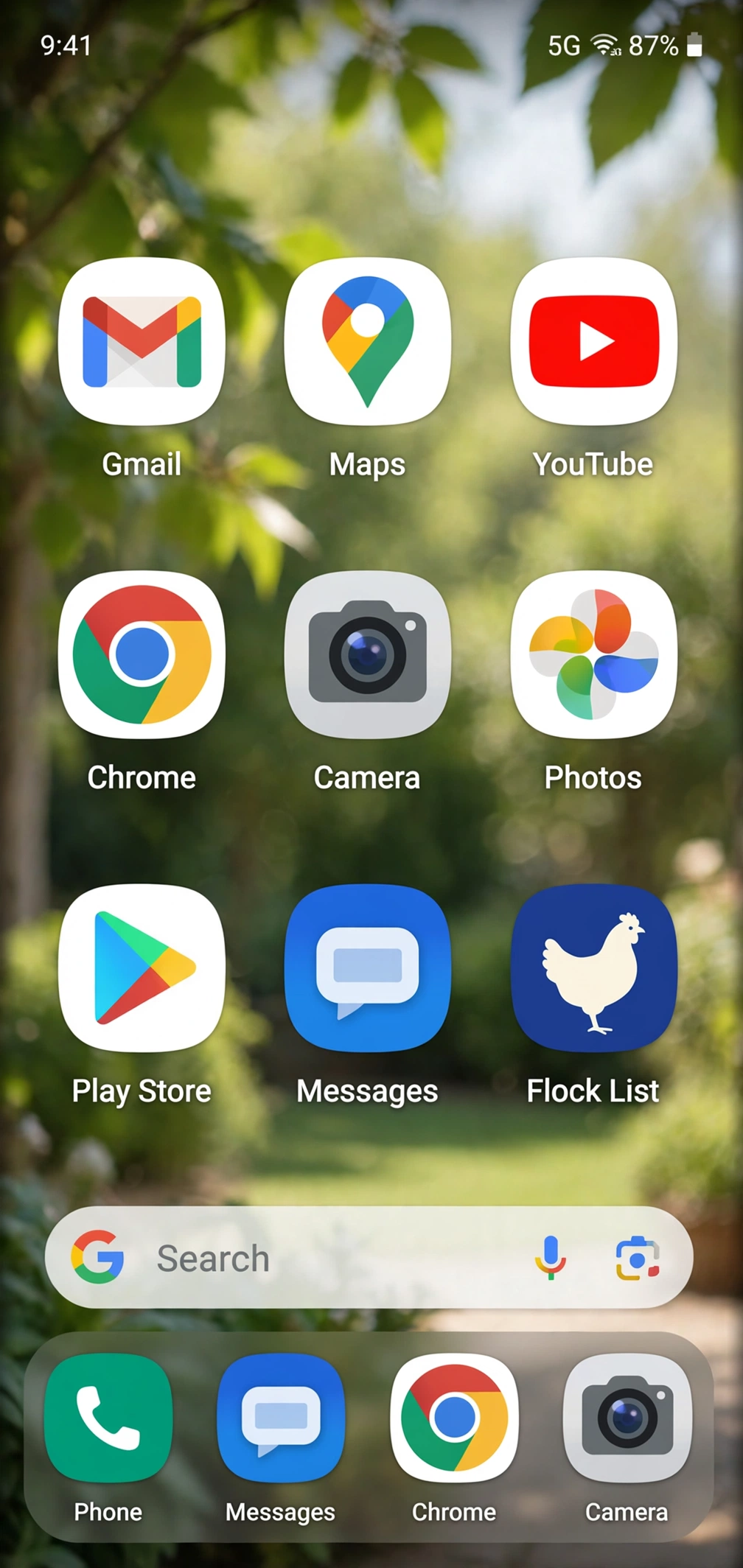
That’s it. You can move the icon, put it in a folder, or uninstall it later, just like any other app.
Android troubleshooting
- Can’t see ‘Install app’ or ‘Add to Home screen’? Make sure the page has fully loaded in Chrome, then open the three-dot menu again. On some phones the option only appears after the page finishes loading.
- Using Samsung Internet, Edge, or Brave? Those browsers have a similar menu option for adding a page to the home screen, but the wording and placement differ. Chrome is the simplest route for this app.
- Don’t download anything else. Flock List does not need a separate file or download from anywhere else. If another site offers you a Flock List download file, don’t install it — just come back to flocklist.net in Chrome.
What you get / what you don’t get
- Free. No purchase, no App Store or Google Play account needed to add it.
- Same account, same listings. Sign in with your existing Flock List account, or create a free account the same way you would on the website.
- Always up to date. There is nothing to update by hand — opening the icon loads the current site.
- No extra storage for a big download. It is a shortcut to the website, not a separate large app file.
Removing it
- iPhone: Touch and hold the Flock List icon, then tap Remove App / Delete Bookmark as you would for any icon.
- Android: Touch and hold the Flock List icon, then tap Uninstall or Remove, depending on your phone. Removing the icon does not delete your Flock List account or listings.